





WordPress powers millions of websites worldwide and remains one of the most popular content management systems because of its flexibility, plugin ecosystem, and ease of use. Businesses, bloggers, eCommerce stores, agencies, and developers rely heavily on WordPress to build modern websites quickly. However, its popularity also makes it one of the most targeted platforms for malware attacks and hacking attempts.
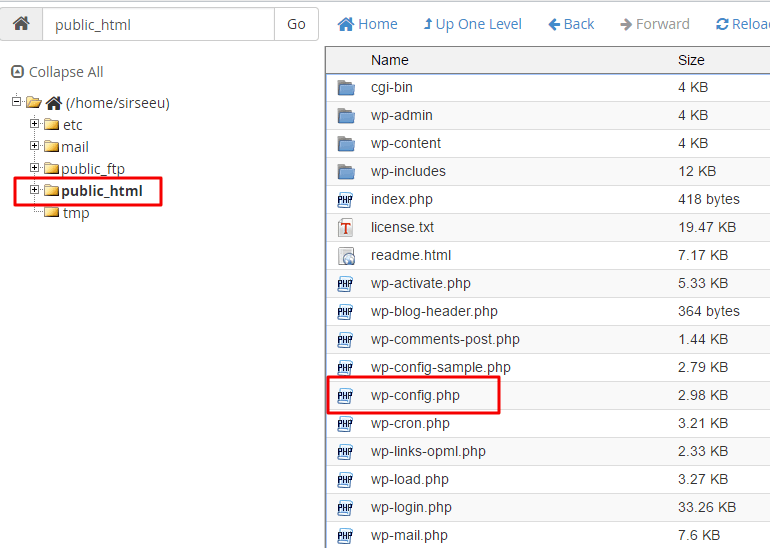
One of the most serious situations a WordPress website owner can face is discovering that the website has been infected with malware and important files such as wp-config.php have become corrupted, modified, or completely empty. When the wp-config.php file becomes 0 bytes or blank, WordPress usually stops functioning entirely because it cannot connect to the database.
This issue often creates panic among website owners, especially if backups are unavailable. Understanding why this happens and knowing the proper recovery process can save the website from permanent damage.
What is WordPress Malware?
WordPress malware is malicious code inserted into website files or databases by attackers. The purpose of malware can vary depending on the attacker’s intention. Some hackers want to steal data, while others use infected websites for spam campaigns, phishing pages, SEO spam, cryptocurrency mining, or redirecting visitors to harmful websites.
Malware infections can spread silently for weeks before becoming noticeable. In many cases, website owners only realize something is wrong when:
- the website stops loading,
- visitors report strange redirects,
- Google displays malware warnings,
- hosting providers suspend the account,
- or important files disappear.
Why wp-config.php is Important
The wp-config.php file is one of the most critical files in a WordPress website. It contains:
- database name,
- database username,
- database password,
- database host,
- security salts,
- table prefix,
- and important WordPress configuration settings.
Without this file, WordPress cannot establish a connection with the database.
A typical wp-config.php file contains:
define('DB_NAME', 'database_name');
define('DB_USER', 'database_user');
define('DB_PASSWORD', 'database_password');
define('DB_HOST', 'localhost');
If this file becomes empty, the website will usually display:
- a white screen,
- database connection errors,
- internal server errors,
- or a completely broken website.
Why Does wp-config.php Become Empty?
There are several reasons this can happen.
1. Malware Infection
Some malware intentionally deletes or empties configuration files to:
- break the website,
- hide traces,
- confuse the owner,
- or create easier access for attackers.
This is one of the most common causes.
2. Hosting Corruption
File system corruption or hosting issues may occasionally damage files unexpectedly.
3. Failed Plugin or Update Process
Improper updates or interrupted file-writing operations can corrupt important files.
4. Accidental Human Error
Developers or administrators may accidentally overwrite or erase the file during editing.
5. Cross-Site Infection
When multiple websites share the same hosting account, one infected website can spread malware to others.
Signs Your Website is Infected
Common symptoms include:
- redirects to spam websites,
- unknown admin users,
- hidden PHP files,
- slow website speed,
- Google blacklist warnings,
- spam content appearing on pages,
- disabled hosting account,
- unusual CPU usage,
- or missing core files.
If wp-config.php becomes empty together with these symptoms, the infection is usually serious.
What to Do When wp-config.php is Empty
This situation requires immediate action.
Step 1: Do Not Panic
An empty wp-config.php file does not necessarily mean the entire website is lost. In many cases:
- the database still exists,
- uploads remain safe,
- and the website can be restored.
Step 2: Check for Backup Copies
Search your hosting account for backup versions such as:
wp-config.php.bak
wp-config-old.php
wp-config-save.php
Sometimes malware renames the original file instead of deleting it.
Also check:
- hosting backups,
- local backups,
- staging websites,
- Git repositories,
- and backup plugins.
Step 3: Collect Database Information
To recreate the file, you need:
- database name,
- database username,
- database password,
- database host,
- and table prefix.
These details are usually available in:
- cPanel,
- hPanel,
- Plesk,
- MySQL database settings,
- or previous backups.
Step 4: Create a New wp-config.php
Use wp-config-sample.php as a base.
Replace the database details with actual values:
define('DB_NAME', 'your_database');
define('DB_USER', 'your_user');
define('DB_PASSWORD', 'your_password');
define('DB_HOST', 'localhost');

$table_prefix = 'wp_';
Step 5: Generate New Salt Keys
WordPress security salts are used for login and session security.
Generate fresh salts using the official WordPress API and replace the old values.
Changing salts logs out existing users but improves security.
Step 6: Save and Test the Website
After recreating the file:
- save
wp-config.php, - upload it to the root WordPress directory,
- and test the website.
If the database credentials are correct, WordPress should reconnect successfully.
Important Security Cleanup After Recovery
Restoring wp-config.php alone does not mean the website is safe. The infection may still exist elsewhere.
Replace WordPress Core Files
Delete and replace:
wp-admin,- and
wp-includes
with clean copies from a fresh WordPress download.
Scan for Malware
Search for suspicious PHP code such as:
eval(
base64_decode(
gzinflate(
shell_exec(
These functions are commonly used in malicious scripts.
Check Uploads Folder
The uploads folder should normally contain:
- images,
- videos,
- PDFs.
Unknown PHP files inside uploads are suspicious.
Remove Unknown Plugins and Themes
Delete:
- unused plugins,
- pirated themes,
- unknown scripts,
- and suspicious folders.
Remove Fake Admin Users
Check all administrator accounts carefully and remove unauthorized users immediately.
Changing Passwords After Infection
After recovery, change:
- hosting passwords,
- FTP passwords,
- database passwords,
- WordPress passwords,
- and connected email passwords.
Assume previous credentials may have been compromised.
Preventing Future WordPress Malware Attacks
Keep Everything Updated
Always update:
- WordPress core,
- themes,
- plugins.
Outdated software is the most common attack entry point.
Use Strong Passwords
Avoid weak passwords and use:
- uppercase letters,
- lowercase letters,
- numbers,
- and symbols.
Install Security Plugins
Popular WordPress security tools include:
- Wordfence,
- Sucuri Security,
- Solid Security.
Avoid Nulled Themes and Plugins
Pirated software is one of the biggest malware sources in WordPress.
Using nulled plugins may save money temporarily but often results in:
- hacked websites,
- stolen data,
- SEO damage,
- and customer trust loss.
Enable Automatic Backups
Maintain:
- daily backups,
- offsite storage,
- and restore points.
Backups are the fastest recovery method during major attacks.
Disable PHP Execution in Uploads
Add this .htaccess file inside /wp-content/uploads/:
<Files *.php>
deny from all
</Files>
This blocks attackers from running malicious PHP files inside uploads.
SEO and Business Impact of Malware
A hacked WordPress website can damage:
- search engine rankings,
- customer trust,
- sales,
- and brand reputation.
Google may blacklist infected websites and display security warnings to users. Recovering SEO rankings after a malware attack may take weeks or months.
Conclusion
An empty or corrupted wp-config.php file is often a sign of a deeper WordPress malware infection, but it does not necessarily mean the website is permanently lost. By recovering database credentials, recreating the configuration file, replacing infected files, scanning for malware, and securing the website properly, most WordPress websites can be restored successfully.
Website security should always be treated as an ongoing process rather than a one-time setup. Regular updates, strong passwords, trusted plugins, automatic backups, and malware monitoring are essential for keeping WordPress websites secure.
The faster a malware infection is identified and cleaned, the lower the damage to SEO, performance, customer trust, and business operations.