







Starting the journey: getting to the writing desk
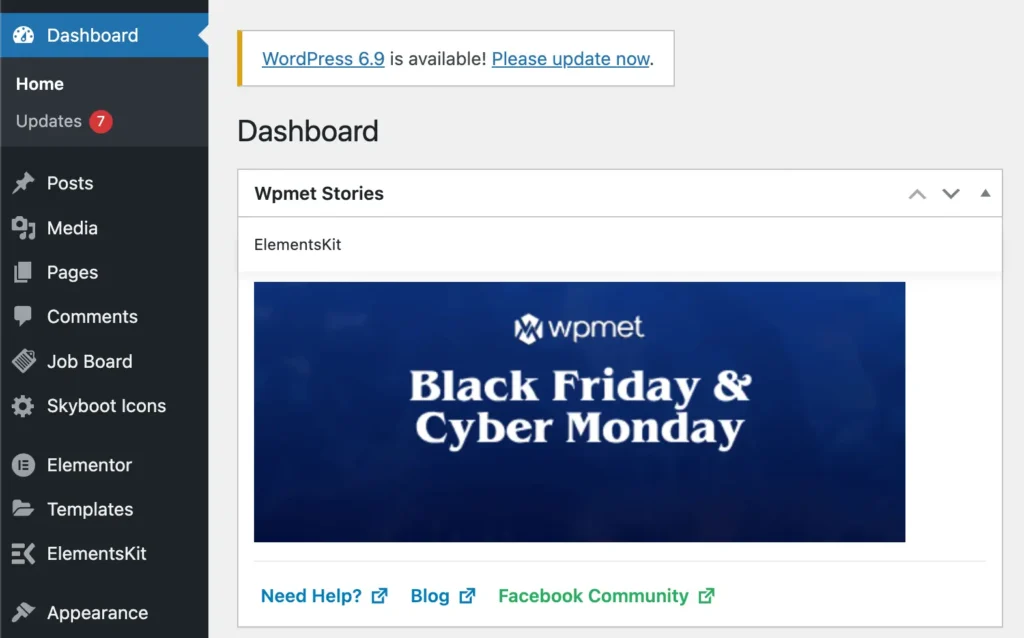
Inside WordPress, everything begins in the dashboard. Once you log in, your left-hand menu includes a quiet little section called Posts. That’s your library of stories.
Open:
Dashboard → Posts → Add New
A blank writing space appears. Think of it as a notebook that politely waits for your thoughts.
Giving your post a name
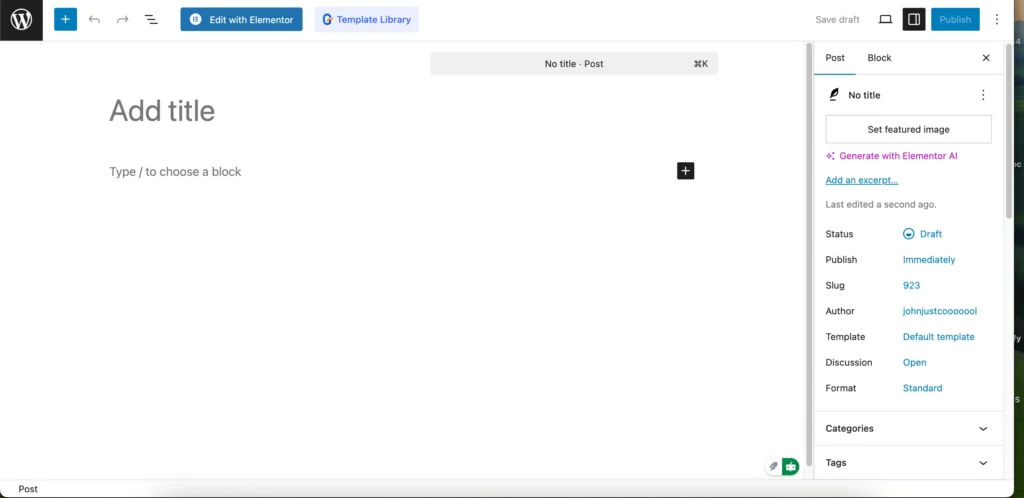
At the top is the Title field. This becomes your blog headline and also influences your URL. Try to make it clear and meaningful. Search engines love a title that understands itself.
The Gutenberg editor: blocks everywhere
WordPress uses a block-based editor called Gutenberg. Every paragraph, image, video, quote—each is a block. You can move them, style them, duplicate them. It’s modular writing, like playing with Lego bricks, but for grown-ups who have opinions.
To add something new, hover where you want it and click the “+” button.
Common blocks you’ll use:
• Paragraph – your main writing voice.
• Heading – helps create structure and rhythm.
• Image – upload or insert from Media Library.
• List – when your brain thinks in tiles instead of threads.
• Quote – to highlight something wise or dramatic.
Writing in a way WordPress likes
WordPress doesn’t judge your writing, but search engines will. A few gentle habits help:
• Keep paragraphs short; screens don’t enjoy long walls of text.
• Use headings (H2, H3) to break your ideas into sections.
• Add internal links—connect one of your posts to another. It’s like introducing two friends and letting them get along.
• Add external links to credible sources. This signals trust.
• Include at least one good image and fill in its alt text (a tiny description for accessibility and SEO).
Categories and tags: the filing system
On the right panel:
Categories are the big drawers of your cabinet—broad topics.
Tags are the little sticky notes—specific keywords or themes.
Choose only what’s relevant, or WordPress may think you’re over-organizing the universe.
Featured image: the poster of your story
Most themes display a featured image at the top of the post. It sets the mood. You can add it in the right-hand sidebar.
This is usually the first thing readers see on your blog list page, so pick something that whispers, “Click me.”
Excerpt: your mini-trailer
Some themes show a short description under the title. You can write this in the Excerpt box in the right sidebar. It’s optional but useful—you get to control the first impression.
SEO: the quiet engine underneath
If you’ve installed a plugin like Yoast SEO or Rank Math, you’ll see a section where you can:
• Write a focus keyword
• Edit your meta description (the summary that appears in Google search results)
• Improve readability (shorter sentences, active voice, etc.)
These suggestions aren’t commandments; they’re gentle nudges toward clarity.
Saving, previewing, publishing
At the top right:
• Save Draft – when you’re still wrestling with ideas.
• Preview – see how your post looks on desktop, mobile, and tablet.
• Publish – the big moment. A tiny ceremony when your thoughts graduate to the world.
You can schedule your post for later too—handy if you want consistency without waking up early.
After publishing: sharing and updates
Blog posts are living documents. You can update them anytime, refine explanations, fix typos, or improve images. Search engines appreciate freshness.
Share your link on social media, mailers, or anywhere your readers wander.
If you explore further, WordPress lets you add featured videos, custom blocks, interactive embeds, and playful layouts. Every tool is designed to make writing feel natural, not mechanical.
Whenever you want, we can dive into writing style, SEO strategy, or even crafting your first post’s structure.